Release notes
Everything we've shipped, build by build — new features, fixes from your feedback, and what every button does. Found something off, or want something added? Use the 💬 Feedback button right inside the app.
What every icon does
The editor toolbar, decoded — capture buttons on top, the tool palette down the left, actions on the right.


Build 46 — Screenshots in your feedback Current
September 28, 2026
New
- Attach screenshots to feedback. The feedback form now takes up to three images. Attach my last snip adds the capture you just took, and Choose image… adds any picture on your Mac. Big images are resized before they’re sent, so a report never gets stuck uploading. Click a thumbnail’s ✕ to take it back out. Nothing is attached unless you add it.

Build 45 — Feedback that can reach you back
September 23, 2026
Improved
- The feedback form tells you when we can’t reply. A report came in this week asking for help, with no email — and a feedback report carries nothing else that could reach its sender, so there was no way to answer it. Now, while the email box is empty, a red note under it says so. If you click Send without one, the form asks once; click Send again to send it anyway. If that was you: the editor opens after a capture with ⌃⇧4 (Control-Shift-4). ⇧⌘4 is macOS’s own screenshot, and Snippy Snip never sees it.
- The form remembers your email from the last time you sent feedback, so you don’t have to type it again. Pro users still get their license email filled in.
Build 44 — The window goes where you click
September 20, 2026
Fixed
- The start window no longer forces itself in front. Build 41 added one line that pushed the window forward without asking macOS for focus — an attempt at the “it came up behind my other window” report after an update. It could do the opposite too: park the window on top of the app you were working in, where clicking that app changed nothing (reported by a Pro user on 1.43). The line is gone. When you click another app, Snippy Snip goes behind it, the way every window should.
- After an update, the relaunched app asks for focus the right way. The copy that is quitting now hands its place to the copy that is starting, so the start window comes up in front instead of behind. This takes effect from the next update after 44 — the hand-off runs in the build that is closing.
Behind the scenes
- An update can’t change your settings — now checked on every release. We measured it on this one: every preference read before and after installing the update, byte for byte identical apart from two timestamps. That check is now part of how a build ships; a release that changed a setting would not go out.
Build 43 — A way back, and a shorter menu
September 16, 2026

Changed
- Open Snippy Snip is now the first line of the camera menu. With “Keep Snippy Snip visible” off, a capture hid the start window and nothing brought it back short of relaunching the app. Click the camera icon in your menu bar → Open Snippy Snip, and it’s there again, next to whatever editor you have open.
- The camera menu went from 27 lines to 15. It now holds what you do without a window open — get a window back, capture, record — plus Settings, updates, feedback, License and Quit. The switches that used to be listed there twice (microphone, mouse clicks, camera, save location, launch at login, open editor after capture) live only in Settings now, where they always also were; the capture delay lives on the start window. Pause and Stop appear only while a recording is running.
- Two things moved into Settings so nothing was lost: the camera bubble’s Reset Position (next to Position & Size), and what ⌘Q does with a window open — now an honest three-way choice (Ask / Close the window / Quit) under Application.
- Reveal Diagnostics Log… is still there when support asks for it: hold ⌥ (Option) with the menu open and Send Feedback… becomes it.
Build 42 — Your colors stay picked
September 16, 2026

Changed
- Every tool remembers its ink color. Pick yellow for the highlighter and red for the pen, and that is what you get on the next capture — and after a relaunch. The color well follows the tool you select. Line, arrow, box and ellipse share one color; text and step badges each keep their own. Nothing changes until you change it: everything starts in Snippy Snip violet, and Settings → Annotating → Reset ink colors to violet puts it all back. From a user who was re-picking both colors on every shot.
Build 41 — Check for updates from the menu bar
September 10, 2026
Changed
- Check for Updates… now lives in the menu-bar camera menu too. You no longer need a window open to reach it — and the menu-bar path was always the one that quits cleanly.
- The start window asks for focus after an update. It could come back behind the editor once the update relaunched the app. It now steps in front.
Build 40 — Install and Relaunch, relaunched
September 10, 2026
Fixed
- “Install and Relaunch” now relaunches. With a window open, the update prompt could hand off to the same “Close Window or Quit?” question ⌘Q asks — and the update quietly stayed put while the old build kept running. The updater’s own relaunch now skips that question, the way the menu-bar Quit and a logout always have. If you’re reading this on build 38 or 39 and the update seems stuck: quit Snippy Snip from the menu-bar camera icon, and the downloaded build installs on its own.
Build 39 — A new front door
September 10, 2026

Changed
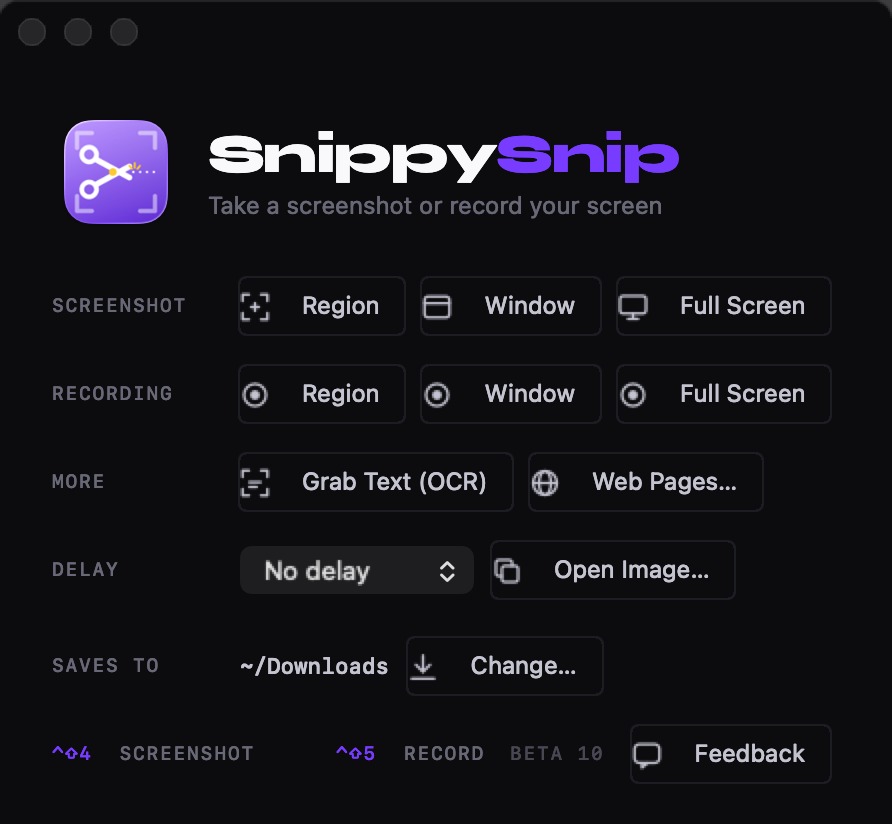
- The start window is rebuilt. One Screenshot / Recording switch sits over three big tiles — Region, Window, Full Screen — instead of two rows of six small ones. The switch remembers what you used last. Grab Text, Web Pages and Open Image have their own row; delay, save folder and the three options live together in a tray.
- Your shortcuts, drawn as keys. The three combos show as real keycaps (control, shift, the key) with their names underneath. Rebind one in Settings › Shortcuts and the keys redraw to match.
- One-click capture, one click away. A link under the shortcuts opens the guide to capturing with a mouse button.
- The Tool Guide grew three rows — Backdrop options, Size, and the GIF button under a new Recordings section — and the legend on this page matches it.
Unchanged on purpose
- Every capture, editor and export path. This build changes how the app greets you, not what it does once you’re capturing.
Build 38 — Grab Text stays out of your way
September 3, 2026
Changed
- Grab Text no longer pops up a dialog. Since the beginning, grabbing text ended with a box you had to click away — and it also pulled focus from whatever you were about to paste into. Now it works the way quiet captures do: a small note in the corner shows the first line of what was copied, your focus stays put, and the note fades on its own. Reported by a Pro user the night before this build, with the fix he suggested: “the way we have it with the screenshots.”
- When there’s no text to grab, the note is red. Nothing is copied in that case, so your clipboard keeps what it had — and the note says so. It stays a moment longer than the green one, because a miss is the message you’re least expecting.


Build 37 — Your own keyboard shortcuts, with a press that proves they work
September 2, 2026
New
- Choose your own shortcuts. Settings now has a Shortcuts section: click the field for Capture region, Record start/stop, or Grab text, press the keys you want, and they take over — menu titles, the start window, tooltips and the quit dialog all update to match. Reset puts the default back. Asked for by four of you, three on Pro; the first request sat for nineteen days, which was too long.
- A new shortcut takes over only after you press it and it reaches Snippy Snip. macOS never tells an app whether a shortcut is truly its own — another app can quietly hold the same keys and the press vanishes. So after you pick a combination, the app asks you to press it once more. If it arrives, it’s yours. If nothing arrives in twelve seconds, the old shortcut stays and the app tells you which app or setting is in the way. Nobody ends up with a shortcut that silently does nothing.
- Want ⇧⌘4 itself? While macOS’s own screenshot shortcut is on, macOS takes the press before any app can see it. The field notices, says so, and offers a button straight to System Settings › Keyboard › Shortcuts › Screenshots. Turn macOS’s off there, press it in the field again, and it’s yours.
- The line under the fields reads in one glance: red means the keys you pressed won’t work and why, green means they’re yours now.


- Shortcut fields work with VoiceOver — each one announces its action, its current keys, and whether it is waiting for your confirmation press.
Changed
- While a shortcut field is listening, the app’s own live shortcuts pause — pressing ⌃⇧5 into the capture field records it (and tells you it already belongs to recording) instead of starting a recording.
- If a saved shortcut ever fails to register at launch — macOS has dropped whole classes of combinations in past updates — that action falls back to its default and says so, rather than starting silent.
Build 36 — Save any recording as a GIF, and an important pause fix
August 27, 2026
New
- Save any recording as a GIF. (Pro — part of recording) A new GIF button on the recording preview turns the take into an animated GIF sized for email — it saves next to your recordings and lands on your clipboard at the same time, so ⌘V in a message drops it into the body, playing, instead of riding along as an attachment someone has to click. Requested by a beta user who wanted to record something and put it straight into an email. (GIFs can’t carry sound — for narrated takes, save the video.)
Fixed
- Pausing a recording could lose everything before the last resume. On builds 34 and 35, the parts of a paused recording were not being joined when you saved — the finished file kept only the stretch after your final resume, and the earlier parts were discarded. If you paused a recording on those builds and the saved file came up short, this was why, and we’re sorry. The join is now exercised by an automated test that records, pauses, resumes, and inspects the joined file end to end on every build — and if a segment ever fails to record, the parts that did record are kept instead of being thrown away.
- Pressing Resume very quickly after Pause is now always safe — before, a fast enough click could confuse the recorder about whether the take had ended.
Build 35 — A clearer name for the transparent backdrop
August 26, 2026
Changed
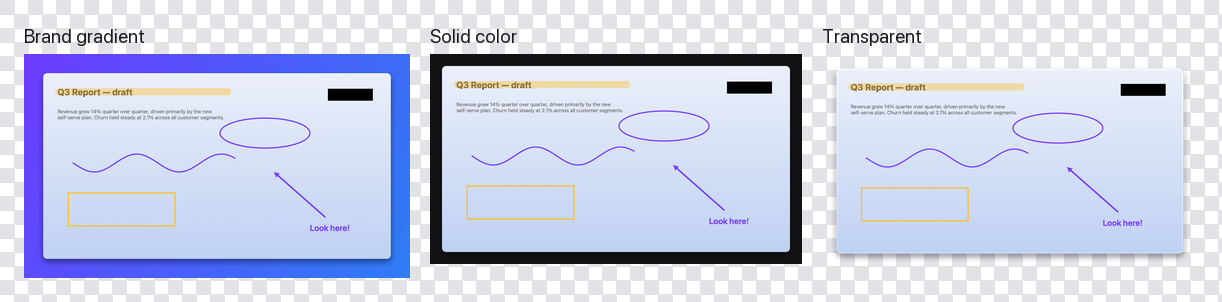
- The Backdrop tool’s transparent option is now labeled “Transparent.” It shipped hours earlier in build 34 as “None” — ambiguous in a list of backgrounds, and not what these notes called it. Same behavior, honest name.
Build 34 — Your camera in the recording, pause and resume, and a backdrop you control
August 26, 2026
New
- Your camera, in the corner of the recording. (Pro — part of recording) Turn it on and your camera appears in a circle on screen, so it is part of the video. Drag it anywhere you like and pull its corner to any size, right up to filling the screen. Because the picture and your voice are captured together, they can never drift out of sync.
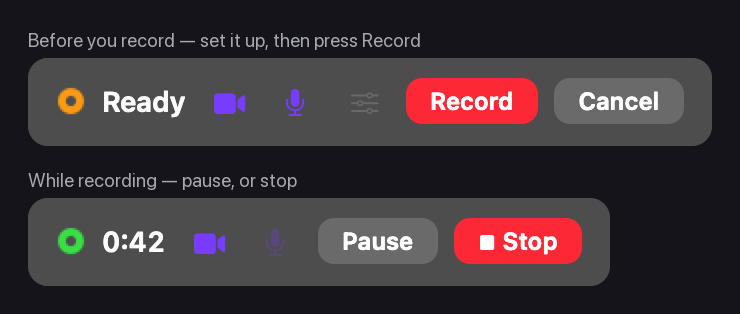
- Set the shot up before anything is recorded. Choosing a region, window, or screen no longer starts recording. It arms one: the controls appear, nothing is being captured, and recording begins when you press Record. Frame the camera, pick your microphone, and move the controls out of the way first.
- Pause and resume. Pause mid‑recording and pick up where you left off. The parts are joined into a single video when you save, and the timer keeps counting from where it was rather than restarting.
- Camera and microphone switches on the recording controls, each struck through when it is off, so a glance tells you what is being captured. The controls can be dragged anywhere and stay where you put them.
- Choose which microphone records, with a live level meter. See Fixed below for why this matters more than it sounds.
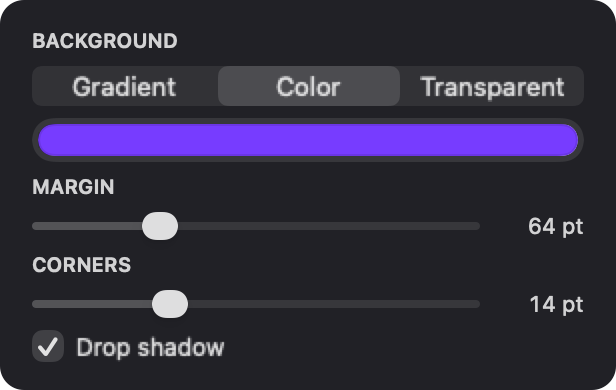
- The Backdrop tool is yours to set. (Pro) Margin size, the background — brand gradient, any solid color, or fully transparent — corner rounding, and whether it casts a shadow. The transparent option drops a padded screenshot onto any page or slide without a colored box around it.
Fixed
- Recordings with the microphone on could be completely silent. Snippy Snip asked macOS for “the default input,” and when that input was muted, unplugged, or a laptop microphone with the lid shut, the recording came back with a perfectly normal-looking audio track and no sound in it — with no warning at any point. Snippy Snip now names the microphone it is recording from, shows you its live level before you start, and warns you on the recording controls if nothing is reaching it.
- Click circles could get stuck on screen. With “Show mouse clicks” on, clicking a button or dragging a slider could leave a violet circle behind permanently — and into the video. It now clears however the click ends.
The backdrop controls came from a customer two weeks into using Snippy Snip who wanted the padding and the background under his own control, and the silent-audio fix came from chasing one recording that had no sound. Keep it coming — the feedback form is in the app.
Build 33 — Settings, a smaller window, and smarter exports
August 23, 2026
New
- A real Settings window. Press ⌘, (or pick Settings… from the menu bar icon) and everything that used to live scattered across menus is in one place: where captures save, whether the editor opens after a capture, recording options, and Launch at Login.
- Live in the menu bar, skip the Dock. A new Settings option shows the Dock icon only while a window is open. With it on, Snippy Snip stays out of your way in the menu bar, and there is no Dock icon to accidentally quit it from. Off by default; nothing changes unless you want it to.
- Pick an export size, including presets for AI chats. (Pro) A new Size control in the editor resizes what you copy, save, or share — the image you are editing keeps its full quality. The AI presets match what ChatGPT and Claude actually process, so pasting a smaller image costs fewer tokens and loses nothing. Aspect ratio is always preserved, and nothing ever upscales.
- Clicks in recordings are now violet. With “Show mouse clicks” on, recordings mark every click with a soft violet circle that follows your drags — easier to spot than the old gray, and unmistakably Snippy Snip.
Changed
- The annotation tools moved to a palette beside your screenshot. The toolbar had grown wide enough that the editor window could not get small. Tools now sit in a slim column on the left, and the window shrinks to well under half its old minimum width. Make it really short and the palette re-arranges itself into two columns so every tool stays visible.
- One worth knowing: while capturing, press Space to switch between region and window capture without starting over. It has always worked; now it is written down on the shortcuts page.
The window change came from a user who noticed the editor would not shrink, and the Settings section, Dock option, and resize presets all came from customer suggestions this week. Keep them coming — the feedback form is in the app.
Build 32 — Your license stays yours
August 20, 2026
Fixed
- Re-entering your license key no longer uses up one of your three machines. It used to. Every time you typed the key in, even on a Mac you had already activated, it counted as another machine. Do that a few times and you could be locked out of software you paid for. Snippy Snip now recognizes the Mac it is running on and reuses the activation it already has.
- If your license ever goes missing, the app puts it back by itself. A lost settings file or an out-of-date activation record used to drop you quietly to the free version. Now Snippy Snip keeps a second copy of your license, notices when its record is stale, and repairs it in about a second. You should never see it happen.
- And if it genuinely can’t keep your license, it says so. Going quiet was the worst part of the old behavior: Pro features simply stopped working and nothing explained why. Snippy Snip now tells you what happened and offers to sort it out.
- Renaming your Mac is just renaming your Mac. Your activation used to be tied to your computer’s name, so changing it made Snippy Snip think you had moved to a different machine. It now recognizes the hardware itself.
A customer wrote in this morning to say an update had left him back on the free version, and to ask whether re-entering his key had just cost him one of his three machines. Fair question, and the honest answer was that it could have. That is fixed today, and if you think an activation went missing at some point, reply to your receipt email and Dom will put it right.
Build 31 — Launch at Login is actually quiet now
August 17, 2026
Fixed
- Starting at login no longer opens a window. With Open at Login turned on, Snippy Snip was meant to start silently — menu-bar icon only, shortcut ready, nothing in your way. It wasn’t: every login put a window on screen and an icon in the Dock. Now it really does start quietly, and ⌃⇧4 works the moment you log in.
- Opening it yourself is unchanged. Launch Snippy Snip from the Dock or Finder and you still get the start window and a Dock icon, exactly as before. Only the login start is quiet.
A user reported this one after build 30, and he was right — the behavior we described in writing wasn’t what the app did. Thank you for the correction.
Build 30 — Straight to the clipboard
August 16, 2026
New
- Quiet capture. Untick Open editor after capture (on the start window, or in the menu-bar menu) and a screenshot goes straight to your clipboard — no editor window to put away, just a small “Copied to clipboard” note in the corner. Paste it anywhere. A user told us his whole workflow is snip-and-paste; now the app can match it. Recordings still open the editor — that’s where Save and Delete live.
- Nothing is lost in quiet mode. Shots collect silently in the session carousel: click the corner note to jump into the editor on the capture you just took, or use Open Editor in the menu-bar menu — it shows how many are waiting. Annotate whenever you’re ready.
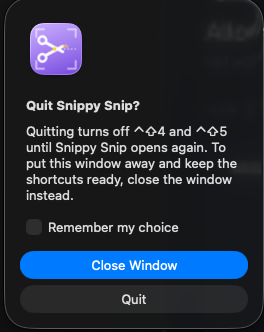
- ⌘Q checks before taking your shortcut away. Quitting with a window open now asks whether you meant to close the window or quit the app — because quitting turns off ⌃⇧4 until Snippy Snip opens again. Answer once with “Remember my choice” and it never asks again (a menu-bar checkbox lets you change your mind later). Logging out or restarting your Mac never sees the question.

Build 29 — One question, once
August 15, 2026
New
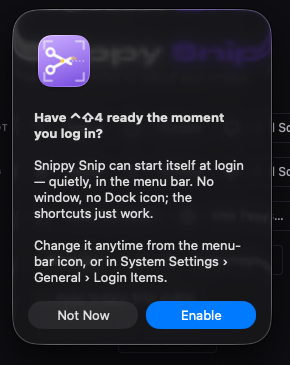
- Snippy Snip now asks about Launch at Login — once. If you haven’t turned it on, your next launch asks a single question: Enable, or Not Now. Either answer is final — the app never nags, and the switch stays in the menu-bar menu if you change your mind later. If you already enabled it in build 28, you’ll never see the question at all.
- It respects the quiet start. The question only appears when you launch the app — never when it starts itself at login. An app that starts invisibly shouldn’t greet you with a dialog.
Build 28 — The shortcut is there when you are
August 15, 2026
New
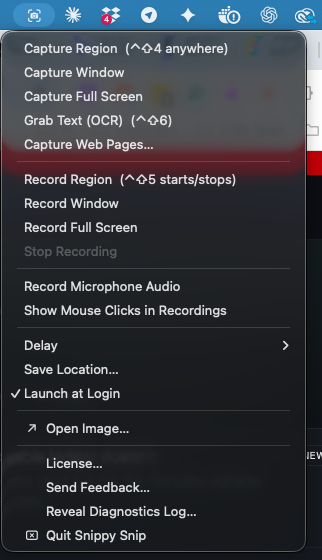
- Launch at Login. Turn it on from the Snippy Snip menu-bar icon and ⌃⇧4 works from the moment you sit down — no launching the app first. A user wrote in to say that macOS’s own shortcut always works while Snippy Snip’s only worked once the app was already open — a fair complaint. A keyboard shortcut belongs to a running program, so the fix is for Snippy Snip to already be running.
- It starts out of your way. When Snippy Snip starts itself at login it stays in the menu bar — no window, no Dock icon, nothing to dismiss. The Dock icon appears the moment you actually capture something, and steps back out when you close the last window. Launch it yourself and nothing changes: it behaves like a normal app, as before.
Build 27 — Stranded recordings come home
August 13, 2026
Fixed
- A recording interrupted by a crash or force-quit is no longer stranded. If Snippy Snip (or your Mac) went down while a recording was open for review, the file stayed behind in a hidden temporary folder — still on disk, invisible, indefinitely. Now every launch checks for stranded recordings and moves them into your save folder. Nothing is ever deleted: the footage simply shows up where your other recordings live, and the hidden folder stays empty.
Under the hood
- Redaction now proves itself. Every build can run an automated check that exports a blacked-out image and verifies the hidden pixels are destroyed in the file — not covered by a shape that could be lifted off. It passed on this build, and it will run on every build after it, so the property can’t silently regress.
Both prompted by a reader’s redaction test protocol on r/macapps — the self-test is that protocol, made permanent. Thank you.
Build 26 — Your blacked-out bits stay blacked out Previous
August 13, 2026
Fixed
- A redacted capture no longer leaves the unredacted version in your clipboard history. Snippy Snip puts every capture on your clipboard the moment you take it — that hasn’t changed, and it’s still the fastest way to work. But if you run a clipboard manager (Raycast, Maccy, Paste, Alfred and others keep a history of everything copied), it was quietly saving that first copy: the shot before you blacked anything out. You’d redact an API key, paste the clean version, and the original was still sitting in your history — searchable, because some clipboard managers read the text out of images. Snippy Snip now marks its automatic copies so clipboard managers skip them.
Good to know
- Pasting works exactly as before. ⌘V still pastes your capture straight after you take it. The only change is that the automatic copies no longer pile up in a clipboard manager’s history.
- Press ⌘C when you do want it kept. Copying deliberately — ⌘C, or the Copy button on the toolbar — puts the shot in your clipboard history the normal way. So keeping something is now a choice you make, rather than something that happened to every capture whether you wanted it or not.
- This does not reach backwards. Captures taken with build 25 or earlier may still be in your clipboard manager’s history. If you’ve redacted anything sensitive, clear that history once after updating.
Found and reported by a reader on r/macapps — thank you. Feature requests and bug reports really do get read.
Build 25 — A countdown, and captures that wait for you Previous
August 10, 2026
New
- A countdown before the shot. Set a delay and large violet numerals count 3 · 2 · 1 down the middle of the screen, on every display, so you know exactly when the capture fires. They never steal focus and you can click straight through them — whatever you were setting up stays set up.
- Play a recording back at your own speed. A speed control on the recording bar runs from 0.5× to 4× for reviewing what you just captured. It changes playback only — saving always writes the original recording, untouched.
Fixed
- A delayed capture no longer disappears when a menu is open. If you started a timed capture and then opened any menu — or grabbed a window edge to resize it — the capture silently never happened. No error, no file, nothing. It fires correctly now, which is what makes capturing a menu possible at all.
Good to know
- To capture Snippy Snip’s own menus, use a delay rather than the shortcut. macOS holds a keyboard shortcut until an app’s own menu closes, so the shortcut fires a moment too late. Start a timed capture first, then open the menu and let it count down. Every other app’s menus work with the shortcut as normal.
Build 24 — Balloons learn the alphabet
August 5, 2026
New
- Step balloons now come in letters too. With the step tool active, click its button again — or just press N again — and it switches from 1, 2, 3 to A, B, C. Numbers and letters keep separate counts, so you can point with numbers and label with letters on the same shot, and each series renumbers itself when you delete one. Asked for by a beta tester the day before this build — thanks, you know who you are.
Fixed
- The capture now resizes with the window. Drag any edge and the image follows, live. Zoom in or out yourself and the window stops interfering with your zoom — Zoom to Fit (⌘9) or switching pages hands control back.
Beta 23 — The Tool Guide stays put
July 31, 2026
Fixed
- The Tool Guide no longer slips behind the editor. It's now a floating panel, so it stays above your work while you use it — and it doesn't steal focus, so you can keep annotating with it open. It tucks away on its own when you switch to another app.
Beta 22 — Renaming a capture renames the file
July 31, 2026
Fixed
- Rename a capture and the saved file follows it. With automatic saving on, renaming a page in the filmstrip now renames the file already on disk — instead of leaving the old one there under its original name. Previously the new name was quietly ignored, so a renamed capture looked like it hadn't saved at all.
- Save All respects those renames too, updating the file that's already there rather than writing a fresh one beside it.
Beta 21 — Polish on yesterday's polish
July 31, 2026
Improved
- Tool names now appear as a proper tooltip, right under the button where you're already looking, instead of over in the title bar. Same instant timing, familiar place.
- No more duplicates from Save All. With automatic saving on, using Save All… on the same folder now updates the files already there rather than writing a second numbered copy of everything. Choosing a different folder still makes a copy — that's you asking for one.
- The Tool Guide opens wider, so descriptions sit on one line instead of wrapping.
Beta 20 — Straight from your feedback
July 31, 2026
New
- Tool Guide. A ? Tools button now sits next to 💬 Feedback in the editor's title bar. It opens a small window listing every control and what it does — leave it open beside your work until the icons stick.
- Tool names appear the moment you hover. Sweep across the toolbar and each tool's name shows up straight away. Previously you had to hold still and wait for a tooltip, which meant most people never saw one.
- Save every capture automatically. A new checkbox on the start window, under your save folder. Tick it and every capture is written there as a PNG without waiting for ⌘S — and it keeps that file up to date as you annotate. Off by default, so nothing starts filling your folder unless you ask it to.
Improved
- "Saves to" is now "Save to." The old wording read like a promise that every capture already landed in that folder. It didn't — that's what the new checkbox above is for. The label now says what it means.
- Your license key sits at the top of the thank-you page, above the setup steps instead of below them.
Thanks to the beta testers who sent all of this in — every item here came from one of you.
Beta 19 — Now called Snippy Snip
July 31, 2026
New
- The app is called Snippy Snip. Two words, the way the site has said it all along. The menu bar, every window, and the app menu now match — including Snippy Snip → License… and Snippy Snip → Check for Updates… Your license, settings, and Screen Recording permission are untouched: macOS identifies the app by its signature, not its name.
- A shortcuts guide. If ⌃⇧4 doesn't seem to do anything, snippysnip.com/shortcuts walks through the most common cause — another app (Raycast, Alfred, Rectangle, CleanShot, a mouse binding) already owns that combo — and how to tell that apart from macOS's own ⇧⌘4.
Improved
- Better diagnostics when a hotkey goes missing. The log now records when a shortcut actually reaches the app, which separates "something upstream swallowed the keystroke" from "the capture itself failed" — two very different problems that look identical from the outside.
Beta 18 — A better feedback window
July 28, 2026
Improved
- The feedback window grew up. Bigger by default, resizable, the message box stretches with the window, and the screenshot tip sits centered with proper margins. Tell us everything — there's room now.
Beta 17 — Screenshot Snippy Snip itself
July 28, 2026
New
- "Keep Snippy Snip visible." Normally Snippy Snip hides itself so it stays out of your shot. Tick the new checkbox — in the editor toolbar or on the start window — and the app stays on screen during capture, so you can screenshot Snippy Snip itself. Perfect for sending feedback about the app; untick it when you're done. (Off by default.)
Beta 16 — A welcome mat, and a pro move Previous
July 28, 2026
New
- The empty editor now earns its keep. Open Snippy Snip with nothing captured and it teaches you the two shortcuts — plus a new Pro move card: bind ⌃⇧4 to the button behind the scroll wheel on a Logitech MX Master 3S and every screenshot becomes one physical click. A step-by-step setup guide is one click away (and the tip retires itself once you're up and running — or the moment you hide it).
Improved
- First delta update. If you're on Beta 15, this update arrives as a ~370 KB patch through the built-in updater — you barely see it happen.
Beta 15 — Updates itself, now for every Mac Previous
July 28, 2026
New
- Automatic updates. Snippy Snip now updates itself — Snippy Snip → Check for Updates…, or it quietly checks in the background and offers the new build. No more downloading zips by hand. (Updates are cryptographically signed, so only genuine Snippy Snip builds can install.)
- Universal — runs on Apple Silicon and Intel. One download, native on both. Intel Macs are covered right through their last supported macOS.
Beta 14 — Signed, sealed, one-tap permission Previous
July 28, 2026
New
- Notarized by Apple. Snippy Snip is now signed with a Developer ID and notarized, so it opens with an ordinary double-click — no more "Open Anyway," no security warnings. macOS also keeps your Screen Recording permission across updates.
Fixed
- Grant Screen Recording once, not twice. Snipping and recording used to ask for permission separately — grant it for one and the other would pop macOS's prompt a second time. Now every capture shares a single permission ask, and once you've granted it a Relaunch Now button finishes the job in one click.
Beta 13 — Recording, refined Previous
July 24, 2026
New
- The capture delay now works for recordings too. Pick a delay, choose your region, and a countdown pill gives you time to set the screen up before recording starts — with a Cancel button (⌃⇧5 also cancels) if you change your mind. Previously the delay quietly applied only to screenshots.
- Copy a recording as an actual video. The moment a recording lands in the editor it's on your clipboard as a movie — paste straight into Messages or Mail and the video itself attaches. No saving first. Share does the same. (Annotate Frame mode still copies the annotated image — you copy what you're looking at.)
Improved
- The recording pill got honest about its colors. The red circle used to look like a stop button — it wasn't one. Now a green pulsing light plus the timer means recording is live, an amber light means the countdown is running, and the one red thing on screen is the actual Stop button. The menu-bar icon follows the same rule — green while recording.
- All three of today's changes came from one tester's feedback batch, sent from inside the app. That's the loop working. 🙏
Beta 12 — The zero-second recording, fixed Available
July 23, 2026
Fixed
- Recordings no longer stop by themselves after half a second. On some versions of macOS (26.0.1 among them), the system's recorder would quietly interpret "no keyboard attached" as "stop recording" the moment it started — permission was fine all along, which is why re-granting it never helped. Snippy Snip now holds the recorder open the way it always should have. If you ever saw a recording die instantly and got sent to System Settings for nothing: this was it, and it's fixed.
- Found via a one-tap diagnostics report sent from inside the app by a beta tester — exactly what Beta 11's reporting was built for. Thank you; you know who you are. 🙏
- Honest failure messages. If a recording ever fails while your Screen Recording permission is verifiably fine, Snippy Snip now says so instead of pointing you at System Settings.
- Sharper failure detection. A recording that ends in under a couple of seconds without you pressing Stop is now always treated as a failure — previously a large-enough garbage clip could slip through and open in the editor as if it were real footage.
Beta 11 — Recording reliability Available
July 23, 2026
Fixed & improved
- Better help when a recording comes out empty. If a recording stops the instant it starts — almost always a Screen Recording permission that hasn't fully taken effect — Snippy Snip now explains exactly what happened and how to fix it, including the case where the app is running from a temporary location and needs to be moved into your Applications folder.
- One-tap diagnostics. When a recording fails, you can send a short technical report straight to the developer with a single click, so the exact cause can be pinned down fast. It only ever sends when you tap the button.
- A diagnostics log you control. Every recording now writes a small log to
~/Library/Logs/Snippy Snip/; open it any time from the menu with Reveal Diagnostics Log…
Beta 10 — Drawn, not assembled Available
July 21, 2026
New
- A complete visual redesign. Snippy Snip has a design system now, and the app and this website share it. Deep near-black chrome, hairline rules instead of filled boxes, and exactly one accent colour — a brand violet that means one thing: this is active.
- Every icon redrawn by hand. The toolbar previously borrowed system symbols at mismatched weights and optical sizes — the single biggest tell that a UI was assembled rather than drawn. All 30 glyphs are now constructed on one 24×24 grid at one hairline weight, and they're 28% larger than before, so they're easier to hit and read.
- The app has a voice. Snippy Snip is set in Syne — in the window title bar beside the traffic lights, on the home screen, and under every capture in the carousel. Everywhere else stays in the Mac's own typeface, because a tool shouldn't shout.
- It tells you what it knows. A monospaced readout under the toolbar shows the capture's dimensions, format, zoom level, and which page of the session you're on — the numbers were always there, they were just hidden.
- The active tool wears a registration mark — a short violet rule beneath the glyph, borrowed from crop marks and camera frame lines, instead of a filled highlight.
- Violet ink by default, so a fresh capture and the app it was taken in look like one thing. Every other colour still works exactly as before.
- A new app icon in a single violet, with amber kept as the one companion colour — the same amber the highlighter draws with.
Fixed
- Capture names in the carousel were set in a display weight far too heavy for label size, which read as stretched. They're a text weight now — same voice, properly legible.
- The home screen and the editor were drifting apart visually. They're built from the same components now, down to sharing the identical capture glyphs.
Beta 9 — Watch it before you keep it Available
July 15, 2026
New
- Recording preview, right in the editor. Press stop and the video plays back immediately on its carousel page — scrub, full-screen, space bar to pause. A toggle flips between Play Video and Annotate Frame. Nothing lands in your save folder until you hit Save (or Save As… for a custom spot); Delete discards a take you don't want. Close the window without choosing? The recording saves itself — footage is never lost.
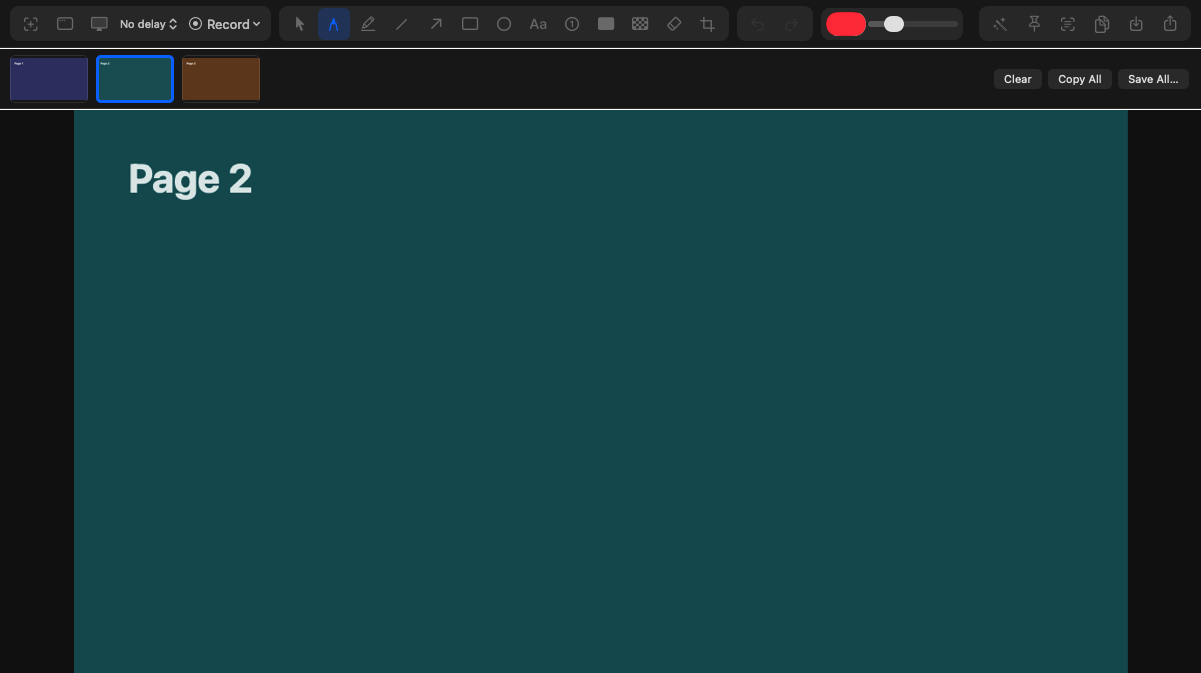
- The carousel is always there. Even a single capture now opens with the filmstrip visible, so naming, saving, and adding more captures all live in one predictable place. New captures slide in on the left — newest first — and when the strip fills up it scrolls sideways instead of growing the window.
- Name your captures. Every thumbnail has an editable name underneath ("Screenshot …" or "Recording …" by default). Click it and the whole name highlights — just start typing to replace it. That name becomes the file name for Save, Save All, and recording saves.
- Resizable filmstrip. Thumbnails are twice as big by default, and you can drag the strip's bottom edge to size them how you like — it remembers your choice. The Clear / Copy All / Save All buttons stay anchored in the bottom-right corner at any size.
- Pinned shots grew handles. Hover a pinned shot for a ✕ close button, and drag any corner to resize — you'll see the familiar macOS resize arrows when you're over a corner. Three ways to close: the ✕, a double-click, or a right-click. Scrolling over the shot zooms it too.
- Grant permissions once, keep them forever. Builds are now signed with a stable identity, so macOS remembers Screen Recording across updates. One clean re-grant with the updater on the beta page and you're done for good.
Fixed
- The Screen Recording permission ask no longer shows two dialogs at once — you get the macOS prompt first, and Snippy Snip's own instructions only if you're still stuck.
- Recording could silently fail forever after an update even with the permission switched on (macOS was holding the grant for the old build). The beta page's one-line updater clears that state.
Beta 8 — Your whole session, one window Available
July 12, 2026
New
- Session carousel. Captures no longer pile up as separate windows: every snip, web page, and recording lands as a page in one window, with a filmstrip of thumbnails to click through. Each page keeps its own annotations and undo history. Right-click a thumbnail to remove a page; Clear ends the session.
- Recordings join the carousel as a preview frame with a play badge — hit Open Video to play the movie.
- Copy All / Save All. The entire set to your clipboard, or numbered PNGs into a folder of your choice.
- 💬 Feedback everywhere. A Feedback button in the editor's title bar and on the home window — bugs, ideas, requests, or just to say you love Snippy Snip. It comes straight to us.
- First-launch setup. Snippy Snip now offers to set up the macOS Screen Recording permission when you first open the app, instead of surprising you mid-recording.
Beta 7 — Logged-in pages & the capture portfolio Available
July 11, 2026
New
- Sign in once for web captures. Pages behind a login used to capture logged-out. Now the capture pill has a sign-in browser — log in there once and every capture sees your session. You can even click through your web app right inside it. PRO
- One entry point: "Capture Web Pages…" (⌘ Cmd + U) replaces the separate single-page and session flows — capture one page or twenty in the same motion.
Fixed
- Finishing a capture session with nothing captured no longer closes silently — the pill now tells you what's going on, and every capture success or failure is visible (and audible) at a glance.
Beta 6 — Capture a whole click-through Available
July 11, 2026
- Web capture sessions. A floating pill follows you while you browse: click through a site page by page, hit Capture on each, then Done — the whole set opens together for annotating, copying, and saving. PRO
- Capture reads the page straight from your front browser — Safari, Chrome, Arc, Brave, and Edge supported.
Beta 5 — Full-page web capture that actually works Available
July 11, 2026
- Rebuilt the web capture engine. Modern sites with scroll animations and lazy-loading captured as blank sections below the first screen; Snippy Snip now renders the entire page the way your eyes see it, top to bottom, matching the browser devtools' full-size screenshot.
Beta 4 — Six new tools Available
July 11, 2026
- Grab text (OCR). ⌃ Control + ⇧ Shift + 6, drag over anything — an error dialog, a paused video, a photo — and the text is on your clipboard. Reads QR codes too. PRO
- Pixelate tool. Blur emails, faces, and keys into blocks — alongside the solid black redactor.
- Step numbers. Click to drop ① ② ③ badges for how-to guides; they renumber themselves if you delete one.
- Backdrop. One click pads your shot on a brand gradient with rounded corners and a shadow — docs- and social-ready. PRO
- Pin to screen. Float any capture on top of every window — drag to move, scroll to resize, double-click to dismiss. PRO
- Full-page website capture — the whole page, even the parts you'd scroll to. PRO
Beta 3 — Beta feedback round one Available
July 10–11, 2026
Fixed
- Recordings stopping instantly with a 0-second file. Root cause: the macOS Screen Recording permission missing and the app failing silently. Snippy Snip now checks up front, walks you to the right settings pane, and never claims a failed recording was "saved."
- The checkout could take over your tab if the payment overlay was slow to load — it now opens the overlay reliably, and falls back to a new tab instead of hijacking yours.
New
- Choose where things save. First launch asks; change anytime via File → Save Location… or the home window's "Saves to" row. Recordings save there, screenshot saves start there.
- Move and edit text after the fact — drag labels with the text tool, and double-click (or right-click → Edit Text) to rewrite one without starting over.
Beta 2 — Snippy Snip Pro Available
July 10, 2026
- Free and Pro tiers. Screenshots and the full annotation editor are free forever; recording and the delay timer unlock with a Pro license — a one-time purchase, no subscription, up to 3 Macs.
- License activation in-app (Snippy Snip menu → License…), with checkout on snippysnip.com.
Beta 1 — Hello, Snippy Snip Available
July 9, 2026
- Region, window, and full-screen screenshots — ⌃ Control + ⇧ Shift + 4 from anywhere.
- A real annotation editor: pen, highlighter, lines, arrows, shapes, text, redaction, eraser, crop, full undo and zoom.
- Screen recording with microphone and click highlights — ⌃ Control + ⇧ Shift + 5 starts and stops.
- Instant clipboard: every snip is copied the moment it opens, and the clipboard stays in sync as you edit. Whatever you see is what pastes.
- Menu-bar quick access, capture delay timer, open-image editing.