Pro move
One-click screenshots with a mouse button
Snippy Snip's capture shortcut is ⌃⇧4 (or whatever you've set it to in Settings). Bind that to a button on your mouse and grabbing anything on screen becomes a single click — no key chord, no reaching for the keyboard. The button we like best is the small one right behind the scroll wheel on the Logitech MX Master 3S — it falls right under your index finger.
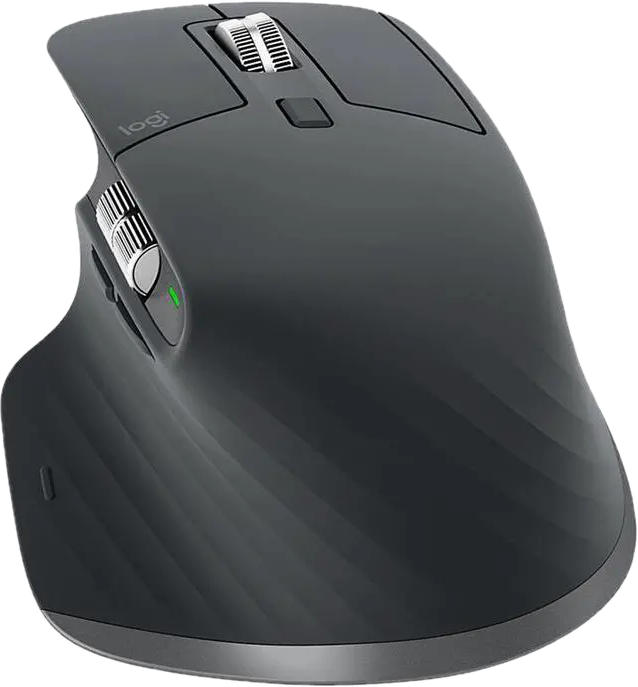
1.Get the mouse & Logitech's app
You'll need a Logitech MX Master 3S and Logitech's free Logi Options+ app (logitech.com). Install Options+ and make sure it sees your mouse.
2.Open Options+ and pick the button
Launch Logi Options+, select your MX Master 3S, and open the Buttons tab. On the mouse diagram, click the button right behind the scroll wheel — Logi calls it the Top button. (This is what the finished setup looks like:)
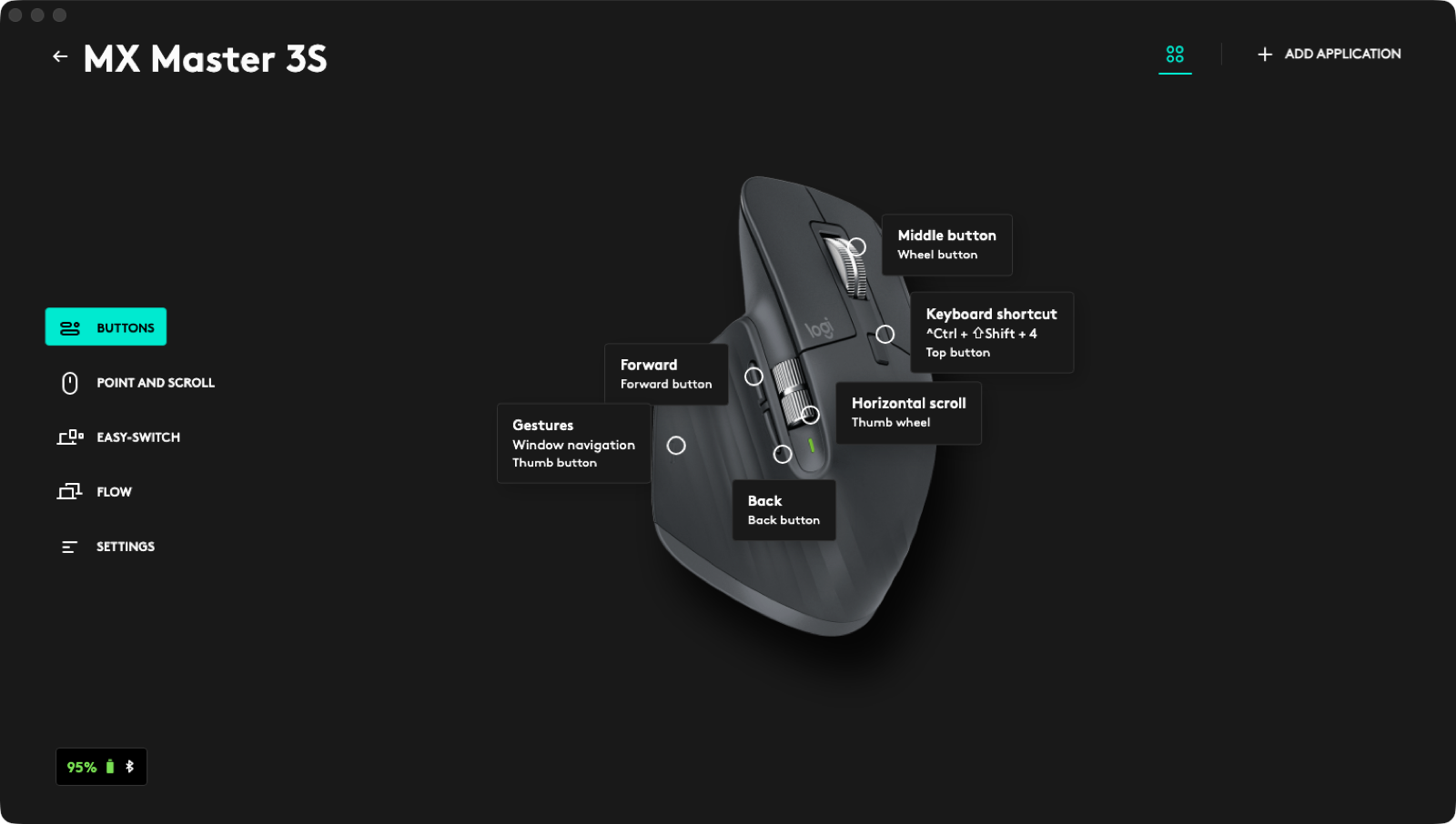
The Buttons view — the Top button sits just behind the scroll wheel.
3.Assign the Snippy Snip shortcut
In the Actions panel that opens, choose Keyboard shortcut, then press ⌃⇧4 (Control + Shift + 4) so it records the combination — you'll see ^Ctrl + ⇧Shift + 4 appear in the field. That's it; it saves automatically.
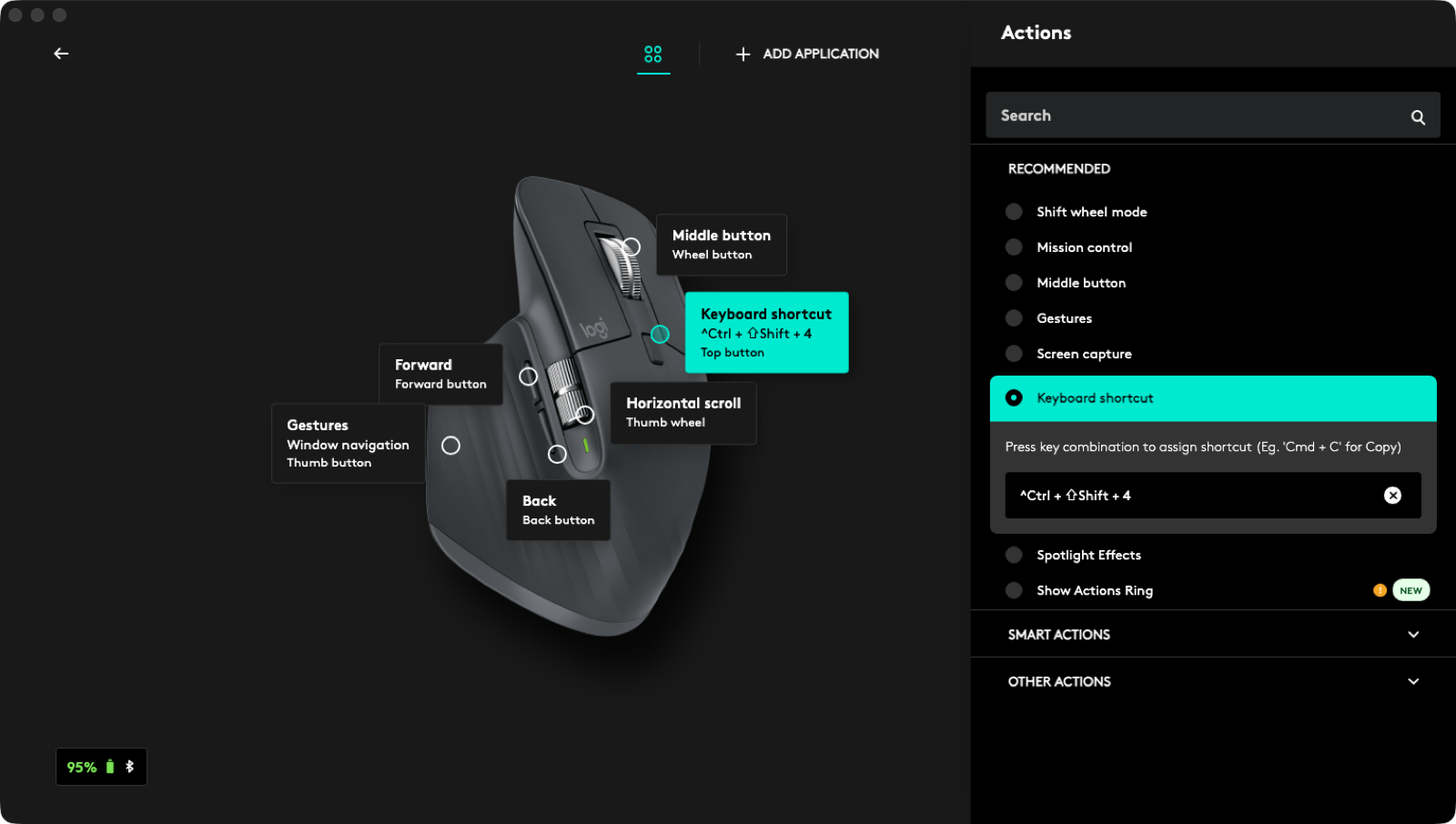
Keyboard shortcut → press ⌃⇧4 → the field shows the recorded combo.
4.Click to capture
That's it. Press the button anytime and Snippy Snip's region capture starts instantly — drag to snip, and it's on your clipboard before you let go. Prefer full-screen or recording? Assign ⌃⇧5 to another button the same way.
Tip: Options+ can make the binding per-app, so the button only fires the shortcut where you want it. And any mouse whose software supports a custom keystroke works — the MX Master 3S is just the one we reach for.
Shortcut not firing, or ⌃⇧4 already taken by another app? See the shortcuts guide →
Affiliate link — we earn a small commission at no extra cost to you.