Field guide
Copy text out of any screenshot on a Mac
Every number you retype is a number you can get wrong.
If you work in finance or ops, you retype more than you think. A balance off a bank portal that won't let you select it. A column out of a PDF that's really a scan. An error code off a dialog box. Twelve invoice numbers off a vendor page that renders as an image.
Each one takes thirty seconds and carries a small chance of a transposed digit. Thirty seconds is nothing. The transposed digit costs an afternoon, three weeks later, when the reconciliation doesn't tie and nobody knows why.
The fix has been on your Mac for a few releases now, and most people have never noticed it. Then there's the faster version. Both, honestly, in that order.
What your Mac already does: Live Text
Your Mac can read the text inside an image. Apple calls it Live Text, and it's genuinely good.
Here's how to use it on a screenshot:
- Take the screenshot (⌘⇧4, drag a box).
- Open the saved file in Preview, or select it in Finder and press the space bar for Quick Look.
- Move the pointer over the text in the image. When the pointer turns into the text-selection cursor, the text is live.
- Drag to select, ⌘C to copy. Paste anywhere.
It works in Preview, Quick Look, Photos, and on images in Safari. It handles photos of paper, not just screenshots, so a receipt photographed on your phone is fair game once it lands in Photos. The recognition is accurate on clean type and better than you'd expect on the messy stuff.
If you copy text out of images a few times a month, stop reading here. Live Text is free, built in, and enough.
Where Live Text stops
It isn't the reading that stops. It's where the reading lives.
It reads images, not screens. Live Text works on a picture that already exists. The error dialog in front of you isn't a picture yet. So the flow is: screenshot it, find the file, open it, hover, select, copy. Six actions to move one line of text. That's the whole friction, and it's why people retype instead. Retyping feels faster than six steps, even when it isn't.
It's after the fact. The text arrives after you've left the screen you were on. For one number that's fine. For a workflow where you're pulling figures from a portal into a spreadsheet forty times an hour, leaving the screen forty times is the workflow.
Some places it doesn't reach. A shared screen on a video call, where a colleague is showing a spreadsheet you don't have. A paused video in a browser tab. A web app that has disabled text selection on purpose. All of these are readable text on your display, and none of them is an image file you can open in Preview without the screenshot detour first.
What you actually want is simpler than any of that: drag a box over the text you can see, and have it on your clipboard. One step. The capability exists in macOS. The flow is what's missing.
Grab text straight off the screen
That one-step version is what a dedicated tool adds, and here's what it looks like in the one I built.
Press ⌃⇧6. Drag a box over any text on your display. Let go.
The text is on your clipboard. A small note in the corner shows the first line of what was copied, your focus stays on the window you were about to paste into, and the note fades on its own. If there was nothing readable inside the box, the note turns red, says so, and leaves your clipboard exactly as it was.
No file. No Preview. No hunting for the screenshot on the desktop. The screen you're reading from is the screen you grab from, and you're back in the spreadsheet before the note fades.
It reads anything your display can show: a portal that blocks selection, a PDF that's a scan, a dialog box, a paused video, someone else's shared screen on a call, a photo you have open. It reads QR codes too, dropping the link on your clipboard instead of making you reach for your phone.
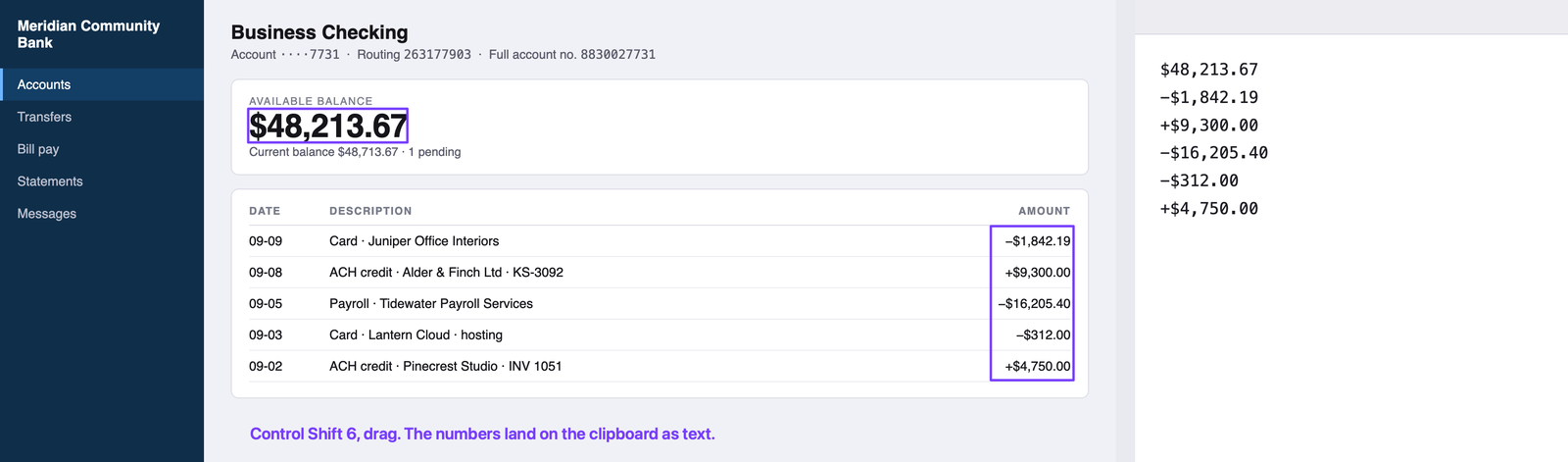
Left: the figures boxed on an invented bank portal. Right: what lands on the clipboard, pasted into a plain text file.
OCR is a typist, not an accountant
This is the part every "extract text from image" article skips, and it's the part that matters if you're moving money.
Text recognition reads pixels and guesses letters. It's very good at guessing. It is not perfect, and the mistakes it makes are the expensive kind: a 0 that was an O, a 1 that was an l, a comma in a European-format number read as a decimal point, an 8 read as a 3 on a low-resolution scan.
So treat grabbed text the way you'd treat a number a junior typed for you. Fast, useful, and checked.
Foot the column. "Footing" is an old accounting word: add up the column yourself and compare it to the total printed on the page. If your sum of the grabbed numbers matches the printed total, every digit in the column is right, and one check covered all of them. If it doesn't match, you've found the misread in seconds instead of in three weeks.
The biggest number I ever found came out of a reconciliation like that. Early in my career, a third-party logistics vendor had negotiated a 7.5 percent rate and was billing 9 to 10 percent. Nothing clever surfaced it. The contract rate and the invoiced rate finally sat next to each other, and the gap came to about $500,000. I told that story in Screenshots are a finance skill, so I'll leave it there. The part that belongs here: the two numbers had lived in two different places, and every hand-off between them was a spot where a digit could go wrong and nobody would check. A number you grab off the screen is only worth something once it gets compared to another one.
Grab at native size or bigger. Recognition degrades on tiny text. If the portal's font is small, zoom the browser to 125 percent before you drag. Bigger pixels, fewer guesses.
One column at a time on wide tables. A box over a whole table comes back as rows of text separated by spaces, which paste badly into a spreadsheet. A box over one column comes back as a clean list that pastes straight down.
Watch the formats. Dates come back as text, currency comes back with the symbol. Paste into a scratch column, convert, then move.
None of this is a knock on the technology. A person retyping makes the same errors, more of them, and doesn't foot the column either.
Where this pays off every month
Bank portals that disable copy on the balances page. Grab the balance, paste it into the cash schedule. The reconciliation starts from the number the bank showed, not the number you typed.
Locked PDFs and scans. A vendor statement that arrived as an image. A signed contract with the payment terms buried on page four. Grab the paragraph, paste it into the ticket.
Error dialogs and license keys. The text you can't select, or a serial number in a photo of a box. One drag beats squinting and typing.
Shared screens on calls. Someone shows a table you'll need after the call. Grab it during the call, from your own display. No "can you send that over?" and no waiting for it.
Spreadsheets in screenshots. The exec who screenshots the model instead of sending the file. Grab the numbers back out.
Here's the question, then: which numbers did you retype this week, and which of those did anyone check? Retyping is the slowest OCR there is, and it doesn't foot the column either.
The tool I use
Snippy Snip is the app I built when I switched to a Mac after 22 years on Windows. Grab Text is the Pro feature I reach for most days.
Free: every capture mode, the full annotation editor, blur and redact, and the shot on your clipboard the instant you take it. No watermark, no nag.
Pro, $19 once: Grab Text (⌃⇧6, drag, paste; reads QR codes too), plus screen recording with in-editor playback, full-page web capture, and pinned shots. No subscription, every update included. And if Live Text already covers you, keep your $19. I mean that.
Free forever, no watermark. Pro is $19, once.
Twenty years in finance and operations, exited founder, still closing the books monthly across his own businesses. Built Snippy Snip after 22 years on Windows. LinkedIn