Field guide
Blur it before it leaves your machine
The screenshot you sent has a second audience.
You sent it to one person. They forwarded it to their manager. The manager pasted it into a channel with forty people in it to ask a question. Somebody in that channel screenshotted the screenshot for a deck.
Your account number is in every copy.
I wrote about this habit in the finance piece, as one of four. This is the long version: what to cover, how to cover it, and, because most articles on this topic oversell, exactly what blurring a screenshot does and doesn't do.
The habit is when, not whether
Everyone agrees sensitive things should be blurred. Almost nobody does it, and the reason is timing.
"I'll crop it before I send it" fails because the sending happens in the same motion as the capture. Shot, paste, enter. There's no "before" in that sequence unless you build one.
So the rule is: blur at capture time. The screenshot opens, you cover what needs covering, then it goes wherever it's going. Not after it's in the channel. Not when someone points it out. Once an image leaves your machine you don't control it anymore, and no amount of "please delete that" gets it back.
Boring, every time. And the question of who saw the account number never comes up.
What to cover: the list people forget
Account numbers, obviously. Here's the rest, and it's longer than you think.
In the content:
- Account and routing numbers, card numbers, even partially masked ones
- Balances and salaries, unless the balance is the point
- Customer and client names, email addresses, phone numbers
- Employee names next to anything HR: pay, performance, leave
- API keys, tokens, license keys, anything that looks like a long random string
- URLs with tokens in them; the "?token=" part of a link is a password
Around the content, which is where people get caught:
- Your browser's other tabs. The tab bar is a list of what else you're working on.
- The sidebar. A Slack sidebar shows channel names; an email sidebar shows senders; a file window shows folder names.
- Notifications that slid in while you were capturing.
- The window title and the file name. "Q3-layoffs-draft.xlsx" in the title bar tells its own story.
- Your desktop, if any of it is in the shot.
- Faces, in a screenshot of a video call.
The fastest cover for the second group isn't blur. It's crop. Crop to the panel that matters and the tab bar, sidebar, and title bar are gone. Blur is for what's left inside the frame.
Two tools, one difference
Every capture tool that does this gives you two versions, and people pick between them by mood. Pick by purpose.
Redact: the black bar. The pixels underneath are replaced with a solid block. What was there is gone from the image, and the bar makes it obvious that something was removed. Use it for anything that would be a problem if read: account numbers, keys, salaries, names in an HR context.
Blur, or pixelate: the mosaic. The pixels underneath are replaced with coarse blocks. The layout still reads. You can see that there was a name in that column and a number in that cell, without seeing which. Use it when the shape of the data matters to the reader and the content doesn't. A pixelated customer column keeps a table looking like a table.
Both are honest about what they are. Neither is a security feature, and I'll come back to that.
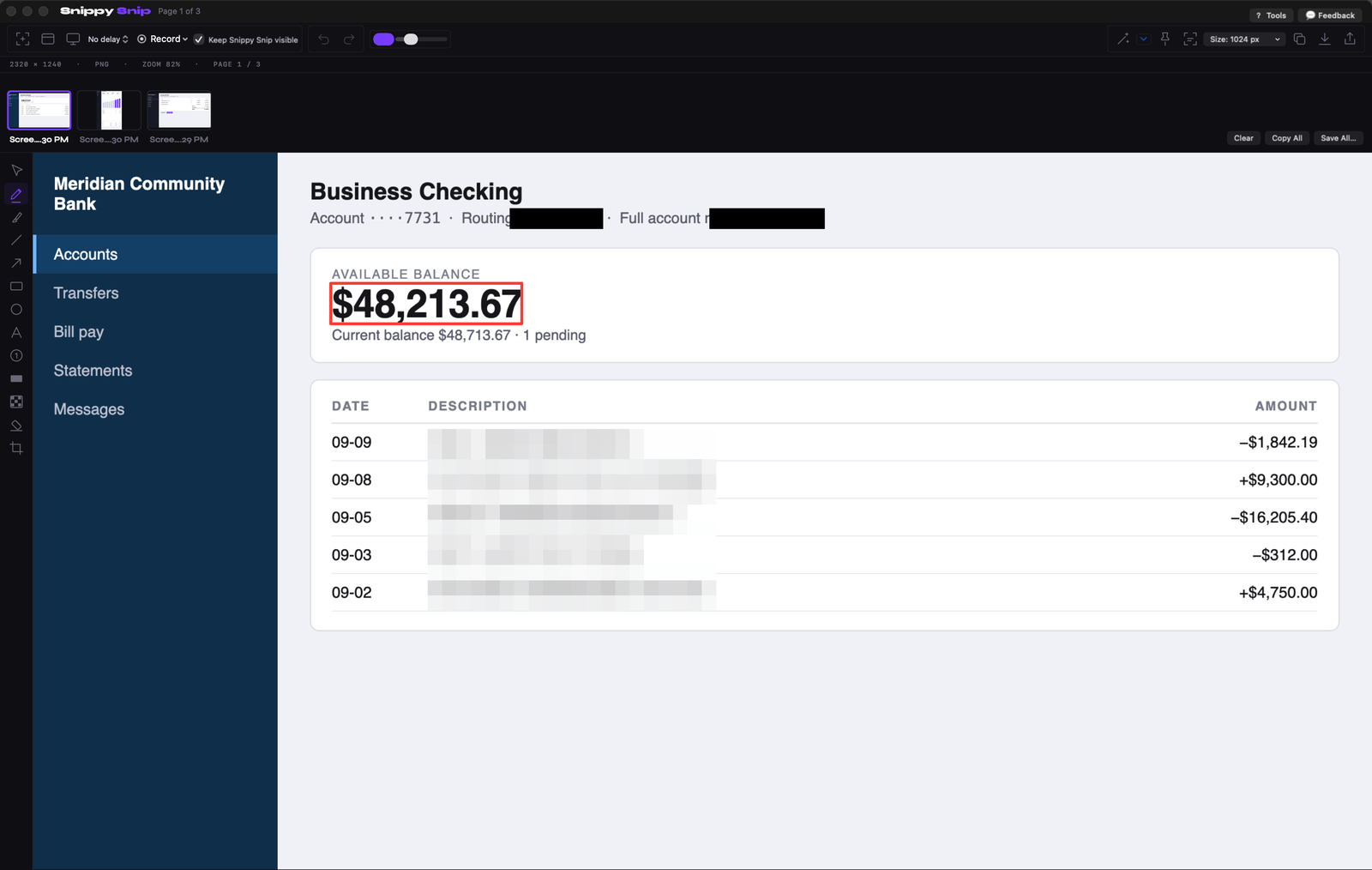
Redaction bars on the routing and account numbers, pixelation on the payee names, a red box on the one figure the reader is meant to see. Invented bank portal.
How to do it on a Mac
With what's built in. Apple's Markup (click the floating thumbnail after ⌘⇧4, or open the file in Preview) has no blur tool and no redact tool. What it has is a shape with a fill color. Draw a rectangle, set the fill to black, cover the field. That's a redaction bar, and for one field it's fine.
Where it stops: there's no pixelate at all, and covering nine fields means drawing nine filled rectangles and checking each one's fill. It's the kind of job you do properly the first time and skip the fourth.
With a dedicated tool. In Snippy Snip, press D for redact, or pick the pixelate tool from the toolbar, and drag over the field. Drag again for the next one. Each cover is an annotation you can move or delete until you save, and the capture on your clipboard updates as you work, so what you paste is the covered version. Both tools are in the free tier, and the free tier is free forever.
One gotcha worth knowing. If you run a clipboard manager (Raycast, Maccy, Paste, Alfred, and others keep a history of everything you copy), understand what it keeps. Snippy Snip puts every capture on your clipboard the instant you take it, before you've covered anything. Until build 26, that included every intermediate state, uncovered. A reader on r/macapps pointed it out on the launch post, and on 2026-08-12 I installed a clipboard manager to check. It held six byte-identical copies of a test capture, and it had run text recognition over them, so anything covered in the image was searchable as text. Then the real proof: four of my own captures from that day were in its history, three of them from an API-key page. No clipboard manager had been on my Mac before, which is why an outside reader saw it and I didn't. Build 26 shipped that evening. It marks automatic copies so clipboard managers skip them; only a deliberate ⌘C goes into your history. Verified against Maccy; I won't claim every manager honors the mark. With any capture tool, the question is the same: does the uncovered version live anywhere after you've covered it? Check your clipboard history once. It's an afternoon of peace of mind.
What blur actually does, and doesn't
Here's the part I promised, and it's short.
Blur and redact change the pixels of the image you share. Nothing more.
They don't reach the screen the image came from. They don't change the file, the portal, the spreadsheet, or the message where the original lives. They don't delete an unedited capture you've already saved, and they don't recall a version you've already sent. What they do is make sure the picture that leaves your machine doesn't show the thing.
That's the entire promise, and it's the right size. A screenshot tool isn't a security product and shouldn't talk like one. If the underlying data is the problem, the fix lives in the system that holds it, not in an image editor.
And the one thing that's on you: check the covered image before it goes. Zoom in once. The bar that stops two pixels short of the last digit is the bar that didn't work.
The thirty-second check before you send
Five looks, in order. It becomes automatic inside a week.
- Is the point still readable? The number you're pointing at, the error, the field. Covering everything defeats the purpose; keep the reason for the screenshot visible.
- Is everything that identifies a person or an account covered? Names, numbers, emails, keys.
- What's around the edges? Tabs, sidebar, title bar, notifications. Crop first, blur second.
- Where is this going? A DM to one colleague and a channel with a client in it are different destinations for the same image. Cover for the widest audience it could reach, not the one you're sending to.
- Zoom in once. Every bar covers its whole target.
Then send it. And the next time a screenshot in a channel makes you wince, notice how far it traveled from the person who took it. That's the distance yours will travel too.
The tool I use
Snippy Snip is what I built after 22 years on Windows and no Snipping Tool on my Mac, and blur and redact are in the free version.
Free: region, window, and full-screen capture, the full annotation editor, redact (the black bar) and pixelate, crop, and the capture on your clipboard the instant you take it, updated as you cover things. No watermark, no nag.
Pro, $19 once: screen recording with in-editor playback, Grab Text, full-page web capture, and pinned shots. None of it is needed for anything in this article.
Free forever, no watermark. Pro is $19, once.
Twenty years in finance and operations, exited founder, still closing the books monthly across his own businesses. Built Snippy Snip after 22 years on Windows. LinkedIn